Localize Your Websites and Content with Enonic
Enonic’s handy layers functionality lets you easily translate and adapt content to different regions and markets.
Written by Vegard Ottervig on
Localizing content to different contexts have always been a tough nut to crack. Do you split your content in completely separate projects and teams in different regions and markets, or do you simply use the same project with different translations based upon it?
The Enonic solution is a model based on layering, which adds layers in different places in your content hierarchy.
Localization Challenges
Localization is ripe with difficulties. A given organization may want to show its content in multiple languages, or even display different content for each region where it is represented. Also, some regions or countries have several languages.
Adding to this complexity is:
- Different structures and URLs across various sites
- Different editors and access control across regions
- Different schedules for e.g. product releases across regions
More complicating aspects include search and search results, front-end performance, content reuse, product management system integration where base data for products can be enriched for specific markets, and finally combining all these considerations into a meaningful user interface.
Separate sites and services can become too cumbersome to maintain and align, and a simple one-to-one translation within a given system may not resolve several of the mentioned considerations.
So, what to do?
Content Layers Solution
With content layers, Enonic have created a solution where customers can take all the mentioned aspects into consideration, from translations and URL structures to enrichment and a user-friendly UI.
The basic high-level unit of layers is a project, for instance your site in English:

You can add layers to the project that inherit content from it, e.g. French and German:
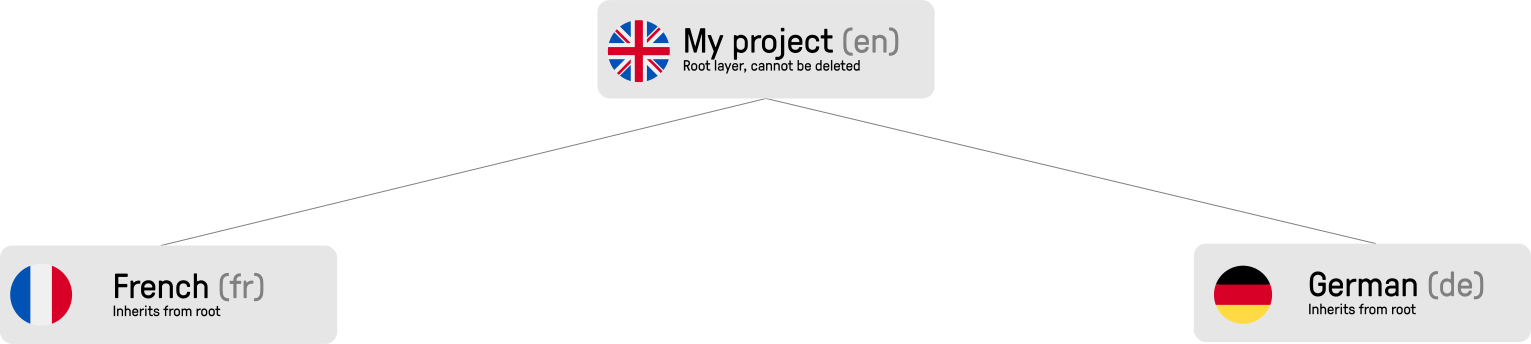
Then it’s possible to add more layers on a third level and even further:
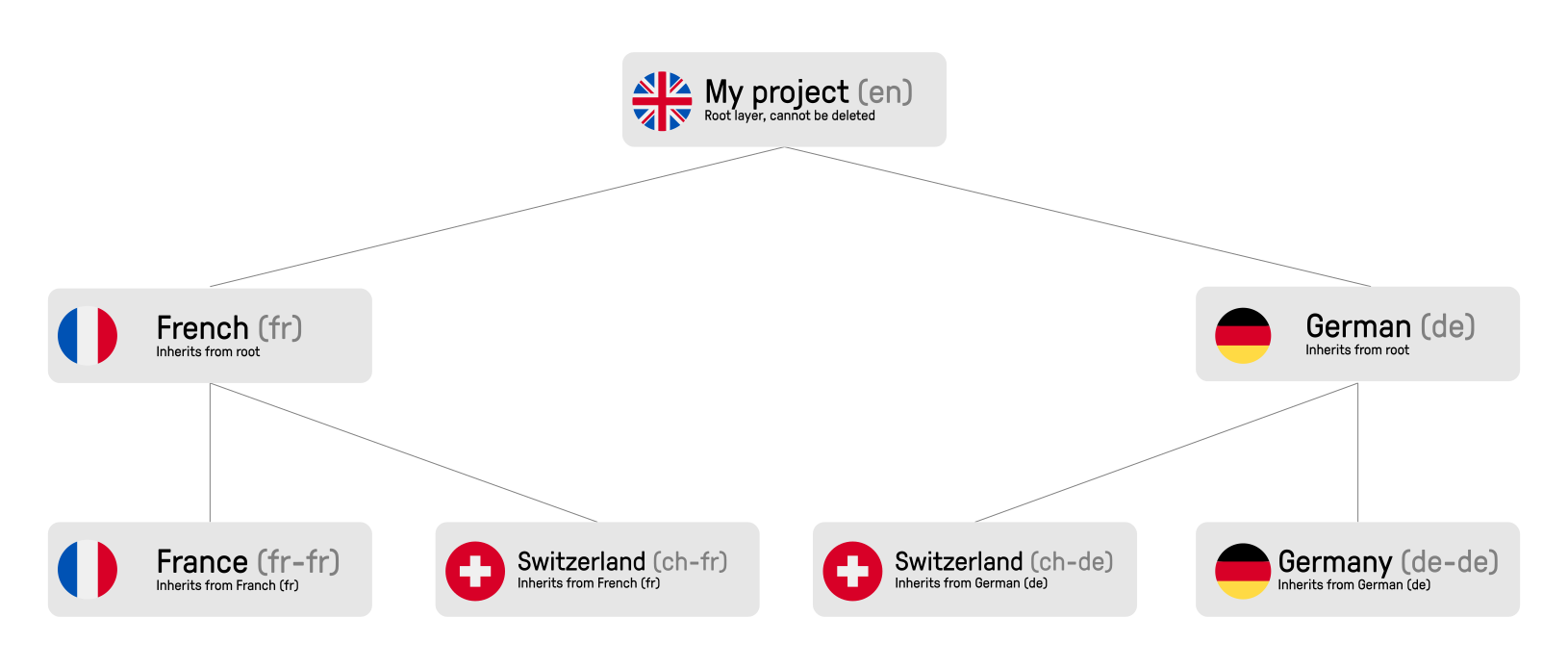
In this example, the region of Switzerland includes the languages of France and Germany. The reason for keeping e.g. the Swiss German and the German layers separate is if there exists data specific to Germany that is not applicable to the Swiss market.
See also: What Structured Content Means for Your Customer Journey »
In any case you can reuse the translation from German to Swiss German when applicable, saving you time, money, and future headaches regarding the content structure.
You create content for each layer, which then “trickles down” unto child layers, where teams can work independently.
For instance, if you publish content in the parent layer, the publish status will not be affected in the child layers, meaning you have full control on what happens where and when.
Creating Layers
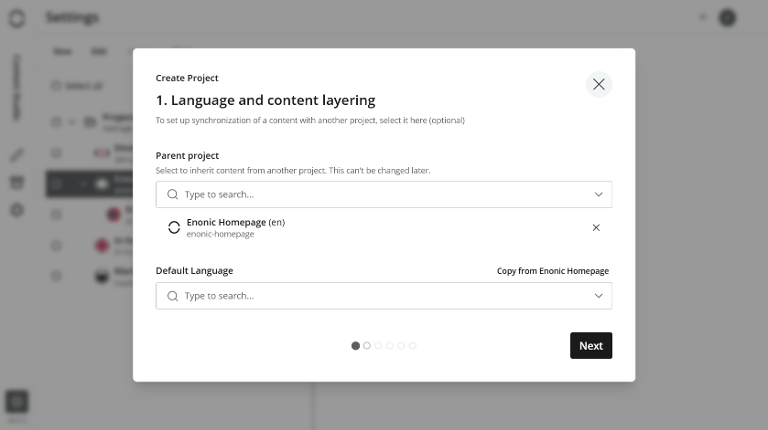
In Content Studio you navigate to “Settings” on the left-hand menu, before highlighting a specific project (in our case the English-speaking site) and create a new layer beneath the project.
After creating the layer where you specify identifier, description, parent project, language, and access rights, you can repeat the process for any additional layer and place it where it is required in the hierarchy.
In the example below we have created a Norwegian layer beneath the English layer:
In the edit mode, you can now toggle between the different layers from the top menu, provided you have the necessary access rights.
For instance, an editor with only access to the Norwegian layer will only see the Norwegian content and cannot toggle.
See also: We're Testing Our Own AI Translator »
Editing and Adding Content to Layers
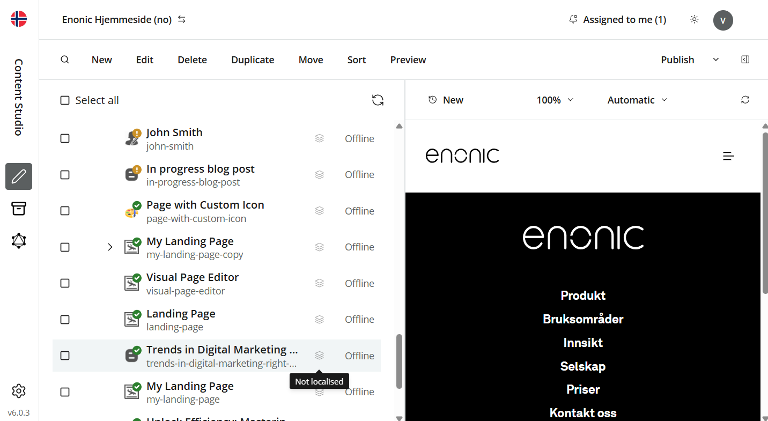
When first visiting a new layer, each inherited content item will have a layer icon to its right. The opaque coloring indicates that the content items in question haven’t been modified:
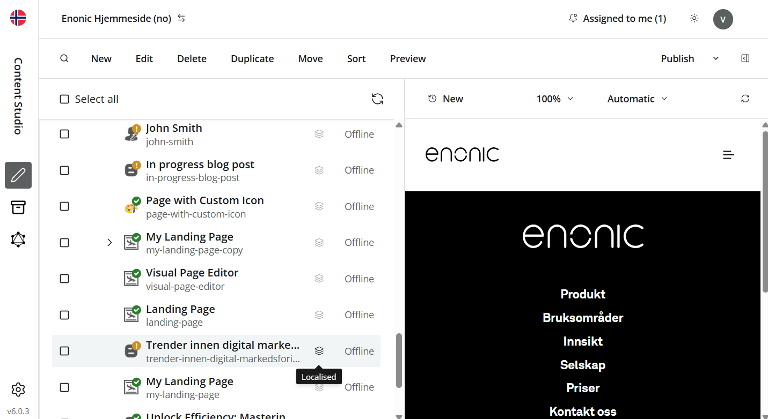
When editing an inherited content item, you can press the “Localize” button at the upper left. Enonic's AI-assisted translator offers optional assistance, and you can easily localize content to the language of the layer:

When the inherited content is edited, its layer icon's opacity turns to normal levels:
The creation of new content items in a child layer is a straightforward process. If we e.g. create a new blog post in the Norwegian layer, it would have been inherited by any child layer, but not by the English parent layer.
The logic is as follows: Every content item that is either new or “marked as ready,” will be inherited to child layers.
Example: ColliCare
ColliCare was the first Enonic customer to use the layer functionality. Being a logistics company with offices around the globe, the need for localized company websites was obvious.

Each country has a website with native language, as well as English. The Indian site is e.g. available in both Hindi and English. ColliCare’s content is reused from their DAM, corporate site, and employees, utilizing most of the features from the layering system.
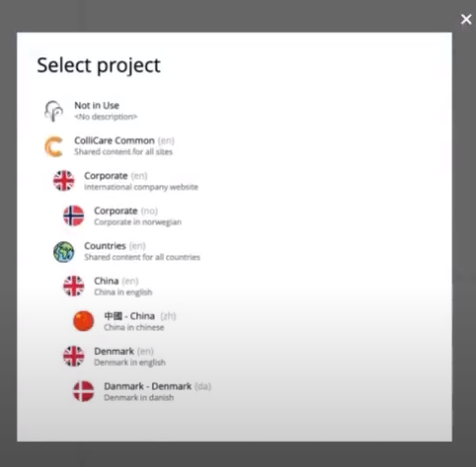
ColliCare’s structure consists of a project and parent layer called “ColliCare Common,” which in turn consists of basic information that can be reused. This can be an “About” section, employees, press releases, and images from a synced DAM.
These content items are then inherited down the structure through several child layers, including Norwegian, Chinese, and Danish, which in turn have their own, local content in addition.
Don't miss: Our New AI Will Boost Your Content Productivity »
Beyond Translations
Finally, it is important to stress that layers support more than translation. Layering can be used for complex inheritance models or content/product enrichment, like in PIMs or corporate websites.
For example, a manufacturer has an image database, which is to be used in three different websites, each with a corresponding layer. In each layer, additional images or product info can be added independently:
- Root layer: Product IDs, images
- Layer: Site 1
- Layer: Site 2
- Layer: Site 3
***
Enonic’s content layer functionality is available for all Enonic customers and can be used to create content and enrich it through different layers—like for instance translation.
The functionality makes full use of Enonic’s headless reuse principle, especially if you have a structure with a central content production trickling down to different local items.
First published 10 February 2021, updated 4 February 2026.